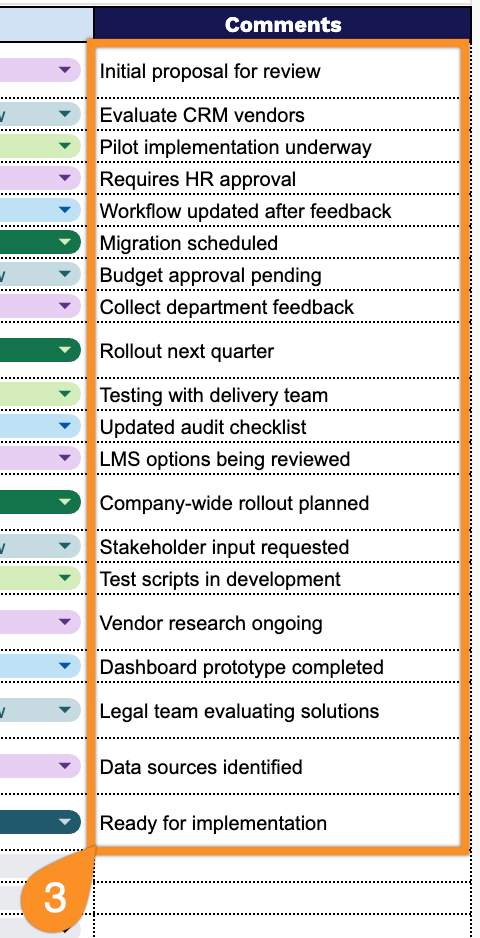

Download our free Strawman Template in Google Sheets, Excel, or PDF to quickly create and refine early-stage proposals.
Customize it to suit your workflow and collaborate with your team as ideas evolve.
What Is a Strawman Template?
A strawman template is a preliminary, rough draft of a plan, proposal, or framework that is intentionally incomplete and imperfect, designed to serve as a starting point for discussion and refinement.
The goal of a strawman template is not to be “right,” but to spark productive conversation by giving a team something concrete to react to, challenge, and build upon.
Download Spreadsheet Daddy’s Free Strawman Template
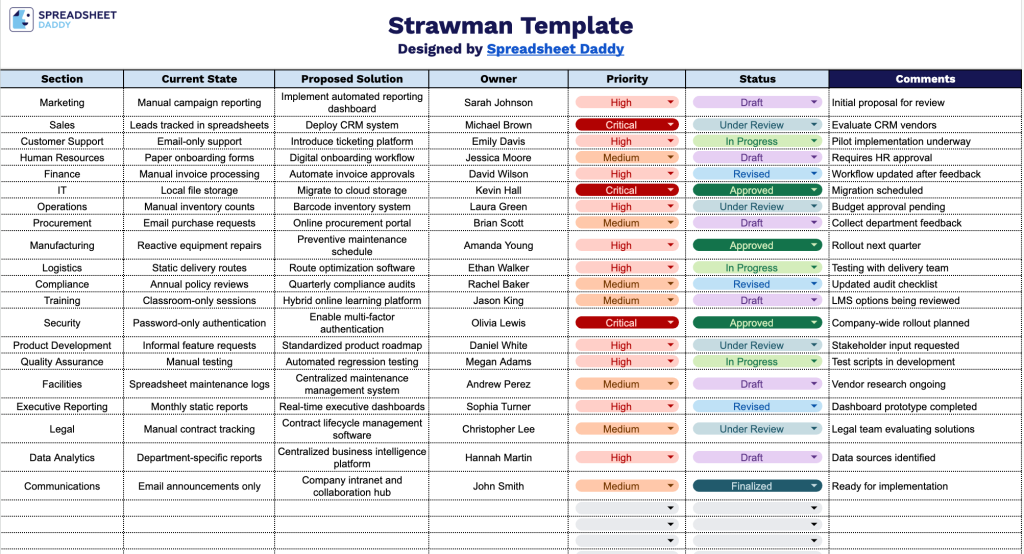
Our Strawman Template gives you a simple, organized way to outline proposed solutions across your organization, keeping key details like ownership, priority, and status in one place.
What’s included
- Structured seven-column framework: The table includes dedicated columns for Section, Current State, Proposed Solution, Owner, Priority, Status, and Comments, giving you a clear, organized way to break down a problem, current process, or proposal into digestible components for team review.
- Owner and priority tracking fields: Dedicated Owner and Priority columns let you assign accountability and rank each item, making the strawman easy to use as a working document during planning sessions or stakeholder alignment meetings.
- Status column for progress tracking: A built-in Status field allows you to mark where each proposed solution stands (e.g., in progress, approved, pending), turning the strawman from a static outline into a living document you can update as decisions are made.
You can easily add or remove columns to match your own workflow and reporting needs.
Select your preferred format below to download the Strawman Template for free:
How to Use Our Strawman Template
1. Get the template in Excel or PDF format, or save a personal version to your Google Sheets account.
2. Complete each row by describing the section, current state, proposed solution, owner, priority level, and status.
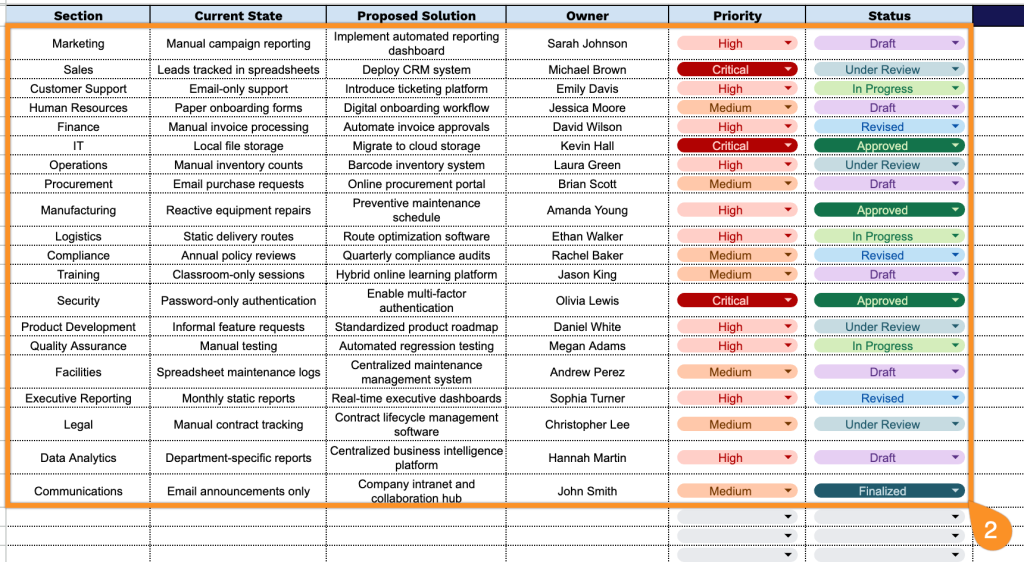
3. Use the Comments column to capture supporting notes, assumptions, dependencies, risks, or any additional information that will help the team evaluate and improve each proposal.