
Skip the hassle of building a UAT testing document from scratch with our free UAT Testing Template.
Available in Google Sheets, Excel, and PDF, the template helps you organize test scenarios, capture actual and expected results, note defects, and keep the entire acceptance testing process on track.
What Is a UAT Testing Template?
A UAT (User Acceptance Testing) template is a structured document that defines, organizes, and records the testing process by which end users verify that a software system meets their business requirements before it goes live.
By providing a standardized framework, a UAT template ensures consistency across testing efforts, improves communication between stakeholders and development teams, and creates a clear audit trail that helps organizations make confident go/no-go decisions for product releases.
Download Spreadsheet Daddy’s Free UAT Testing Template
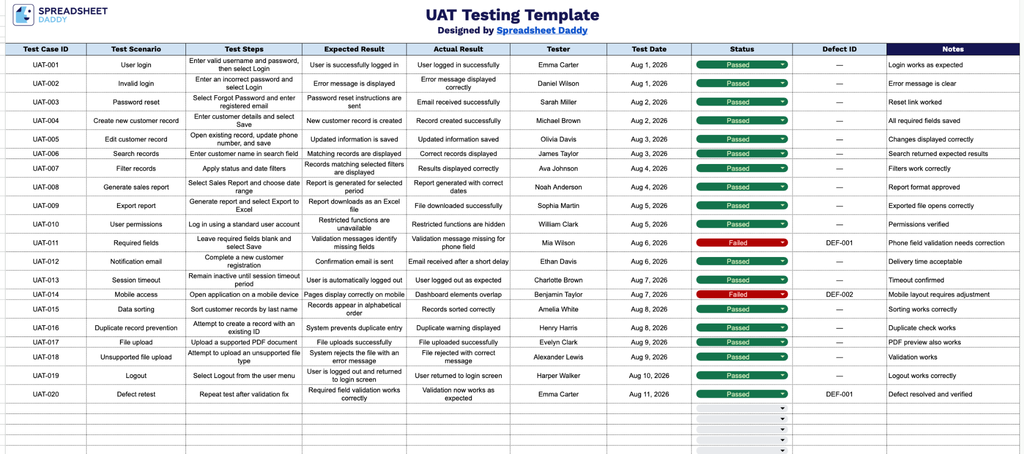
Our UAT Testing Template gives you a clear, organized way to track test cases from start to finish, including test steps, expected and actual results, tester details, status, and any related defects.
What’s included
- Complete test case tracking columns: The sheet includes ten dedicated columns: Test Case ID, Test Scenario, Test Steps, Expected Result, Actual Result, Tester, Test Date, Status, Defect ID, and Notes, giving your QA team a single, structured place to document, execute, and audit each test case from start to finish.
- Test Case ID and Scenario fields: Each test case gets a unique identifier alongside a clear description of the scenario being validated, making it easy to reference, sort, and track individual tests throughout the UAT cycle.
- Step-by-step execution tracking: The Test Steps, Expected Result, and Actual Result columns enable testers to document exactly what actions were taken and compare intended outcomes with actual results, creating a clear audit trail for every test performed.
- Accountability and status fields: Tester, Test Date, and Status columns capture who ran each test and when, along with a pass/fail/in-progress indicator, so stakeholders can quickly gauge testing progress.
- Defect logging and notes: A dedicated Defect ID column links failed tests directly to bug tracking records, while the Notes column provides space for additional context, edge cases, or follow-up items uncovered during testing.
You can add or remove columns to match your own testing process and requirements.
Choose your preferred file format and download a free, ready-to-use UAT Testing template:
How to Use Our UAT Testing Template
1. Download the UAT Testing template as an Excel or PDF file, or save a customizable copy to your Google Sheets.
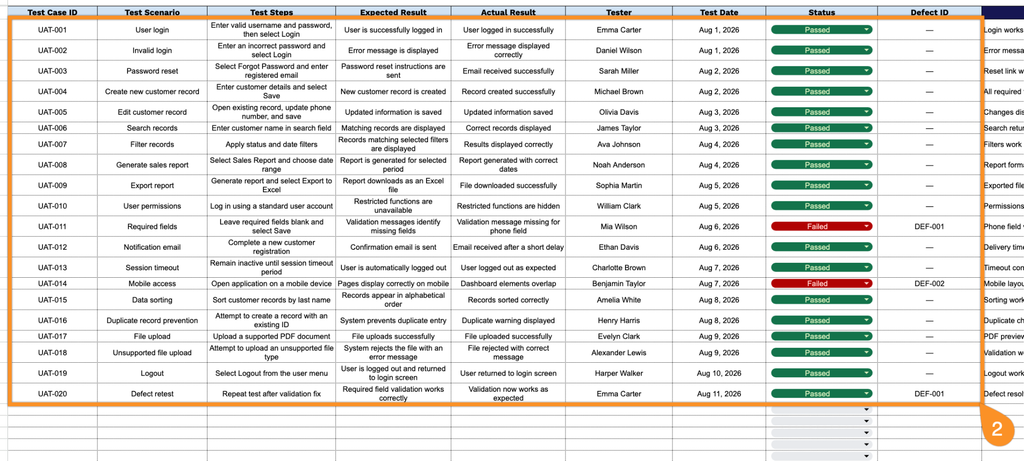
2. Enter the test case ID, scenario, test steps, expected and actual results, tester’s name, test date, current status, and any related defect ID.
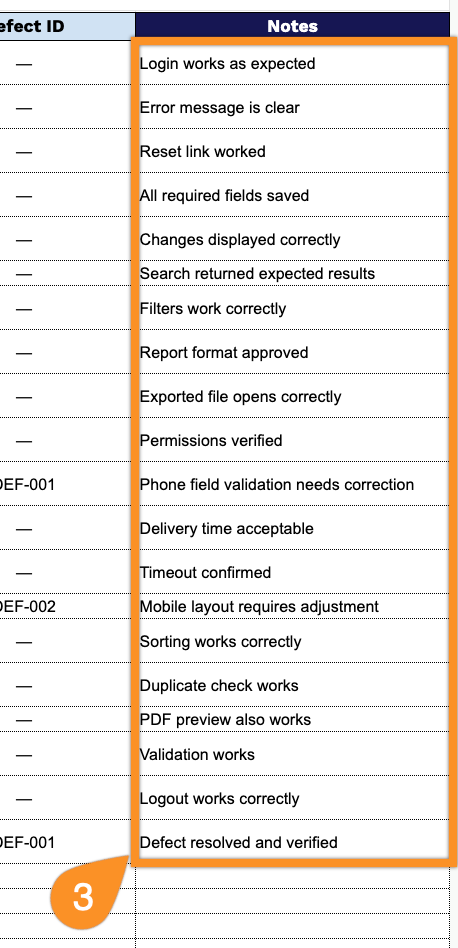
3. Use the Notes section to add additional observations, testing instructions, screenshot references, or other details relevant to the UAT process.